What this page is for: You’ve asked Lin Fung Accounting to install or set up accounting software on your PC remotely. Follow the steps below, then send us the 12-digit access code via WhatsApp or phone — we’ll connect from our side.
Step 1 — Open the setup page in Chrome
Open Google Chrome (not Edge, Safari, or another browser) and visit:
https://remotedesktop.google.com/support
Note: This is Google’s official page; Chrome is normally already installed. If not, get it from google.com/chrome first. The page must be opened in Chrome — other browsers won’t show the same options.
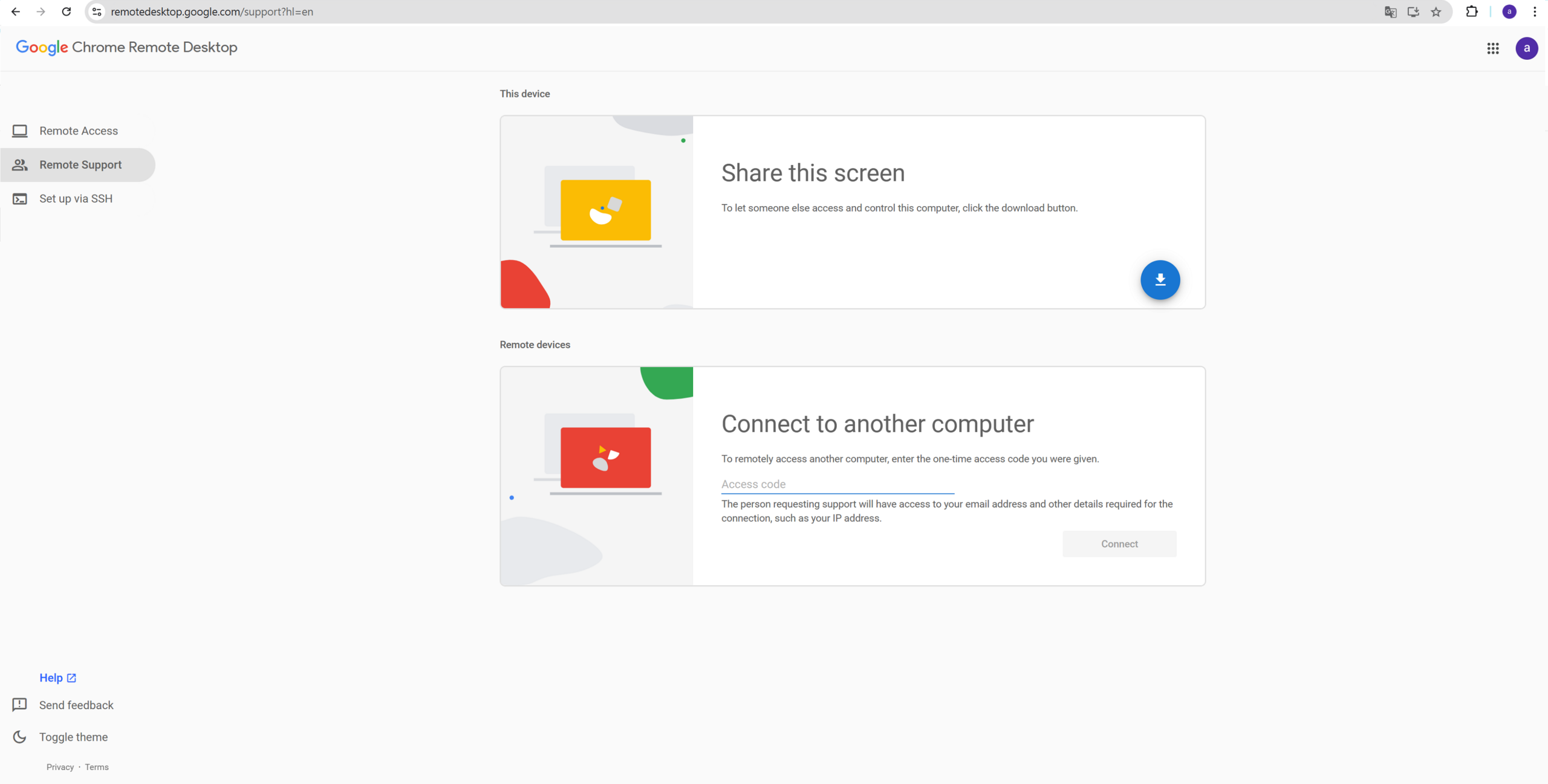
Step 2 — If a “Install Chrome Remote Desktop?” prompt appears, click “No thanks”
The first time you visit the page, you may see a small dialog asking “Install Chrome Remote Desktop?” — this is offering to install the page as a standalone app. For a one-off support session you don’t need this. Click “No thanks” to dismiss the dialog and continue with the regular page.
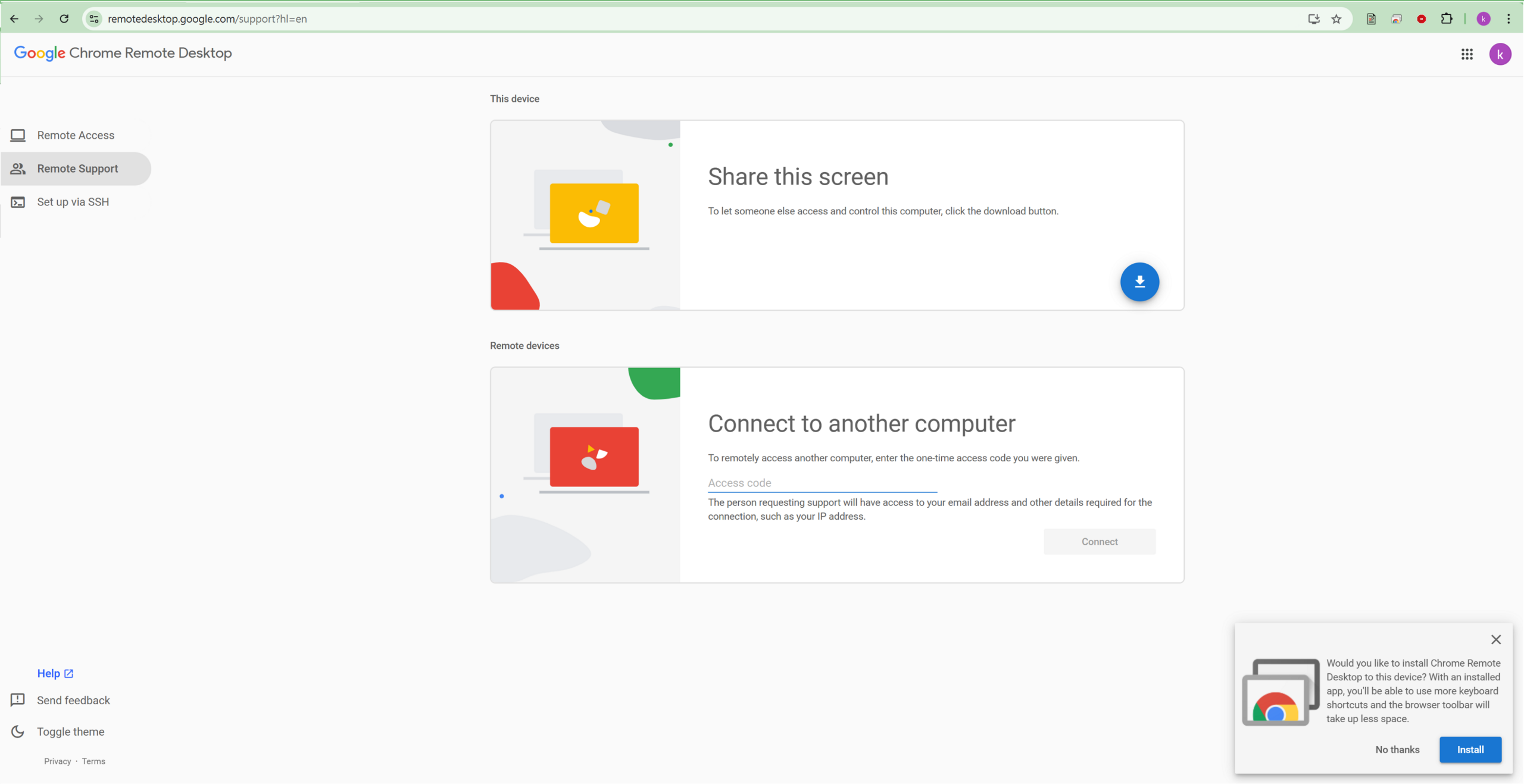
Step 3 — Sign in to your Google account (if not already)
If you’re not already signed in, Google will ask you to sign in. Any Google account works (Gmail, Google Workspace, etc.). If you don’t have one, you can create a free account in the same flow.
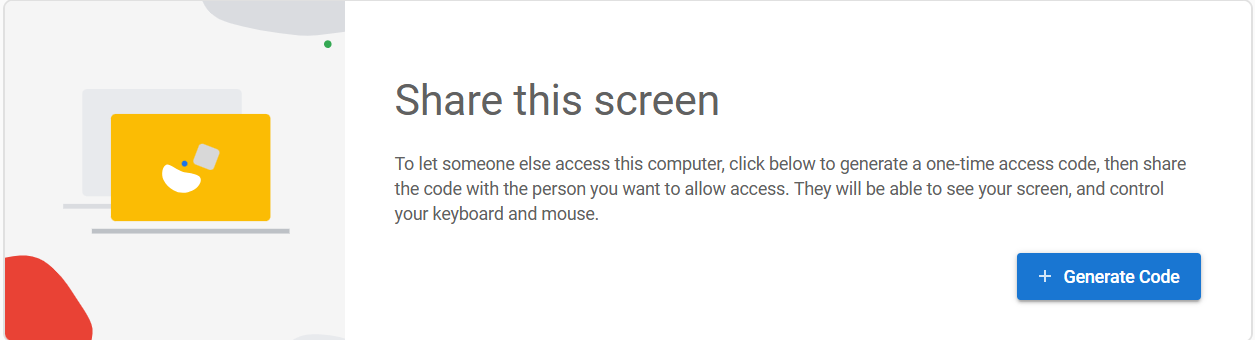
Step 4 — Under “Share this screen”, click the blue “+ Generate access code” button
In the “This device” section, you’ll see a heading “Share this screen” with a short explanation and a blue “+ Generate access code” button. Click the button.
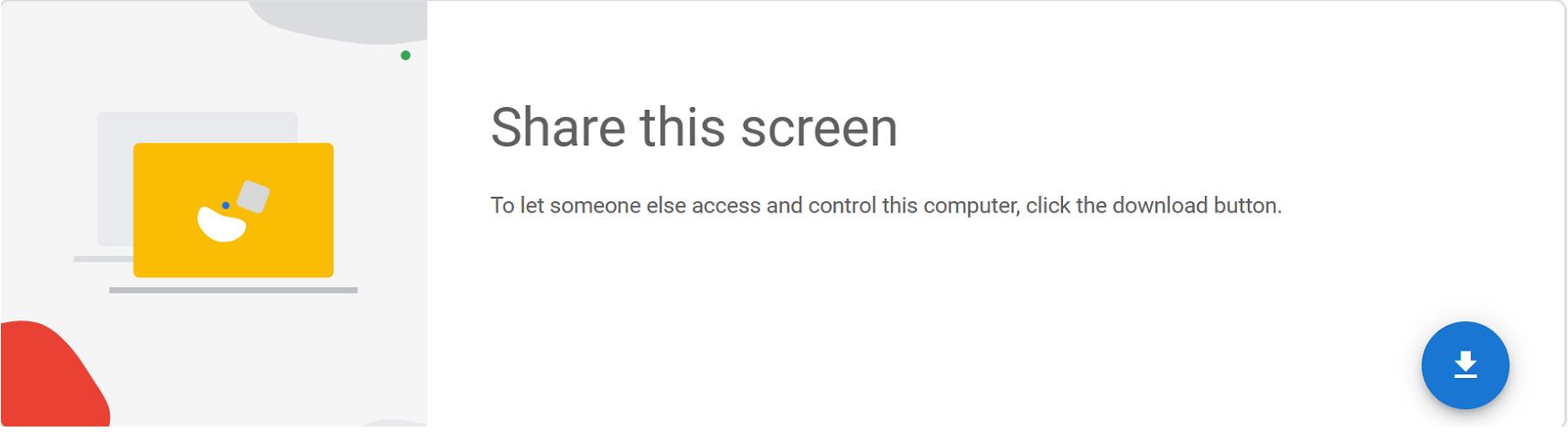
First-time only: If this is your first time using Chrome Remote Desktop on this PC, you’ll see a “Set up remote access” block instead, with a “Download Chrome Remote Desktop” button. Click it, run the small installer that downloads (a few minutes — typical .msi on Windows, .dmg on Mac, .deb on Linux), then return to the page and click “Accept and install”. After that the regular “Share this screen” section appears with the “+ Generate access code” button.
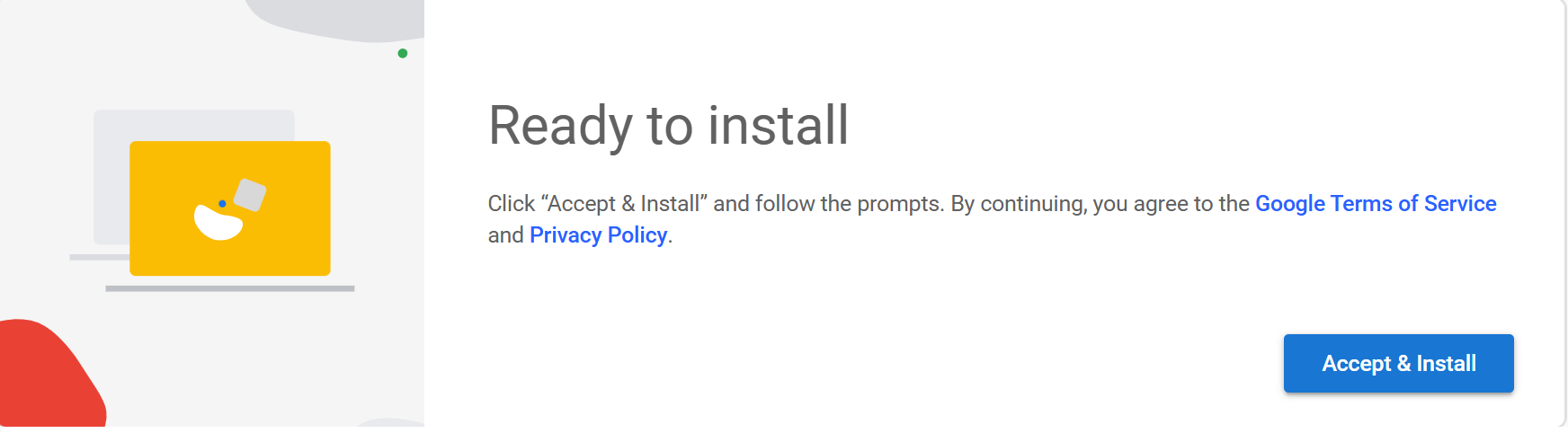
Step 5 — Note the 12-digit access code
The page will display a 12-digit access code (e.g. 123 456 789 012) with a 5-minute countdown timer. Keep this window open — the code expires automatically after 5 minutes.
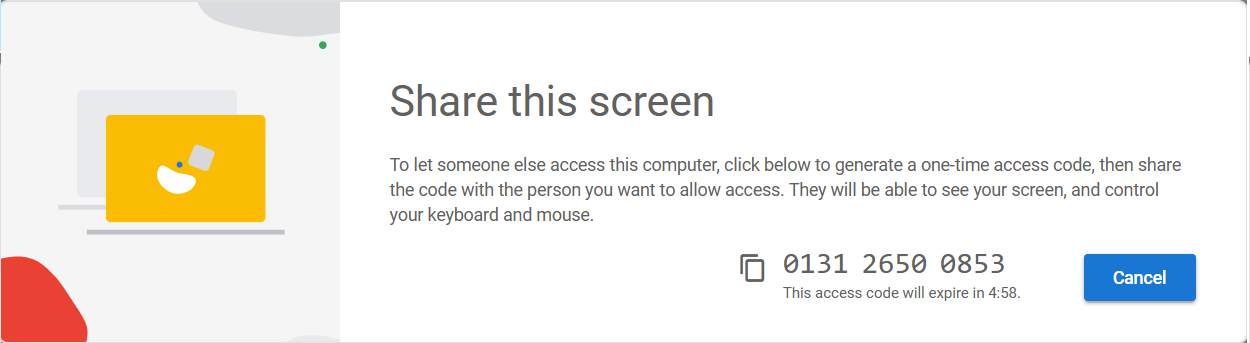
Step 6 — Send the 12-digit code to Lin Fung Accounting
Send us the 12-digit code via any of the following:
- WhatsApp message
- Phone call (read it out)
The code is valid for 5 minutes — if it expires before we connect, return to the page and click “+ Generate access code” again for a fresh code.
Step 7 — Approve the connection request
When we enter your code on our end, a dialog will pop up on your PC asking if you agree to share your screen with us. The dialog shows our Google account name. Click “Share” and the session begins.
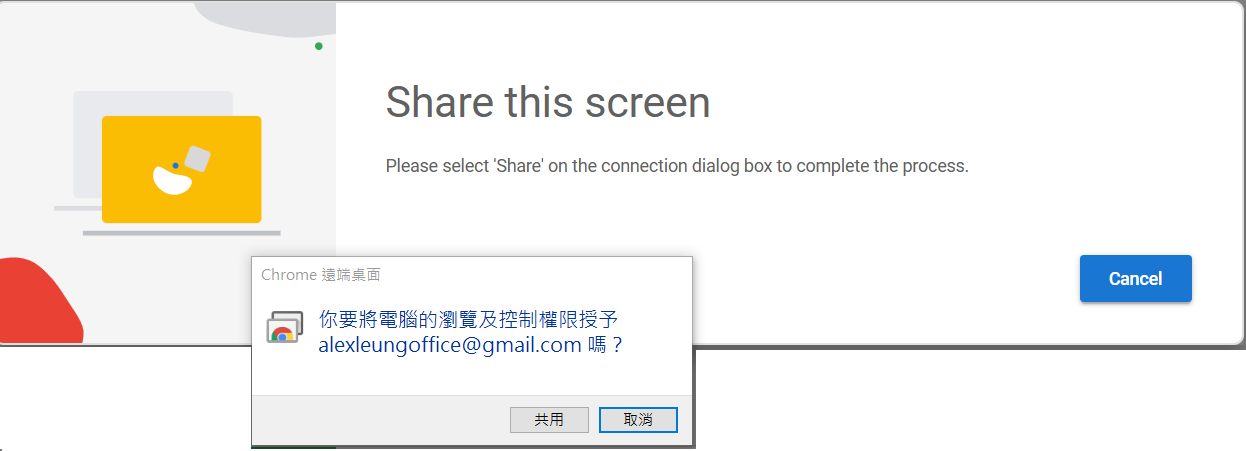
Step 8 — End the session anytime
While connected, you’ll see a floating “Stop sharing” bar at the bottom of your screen. Click it any time and the session ends immediately — we lose all access at that moment.
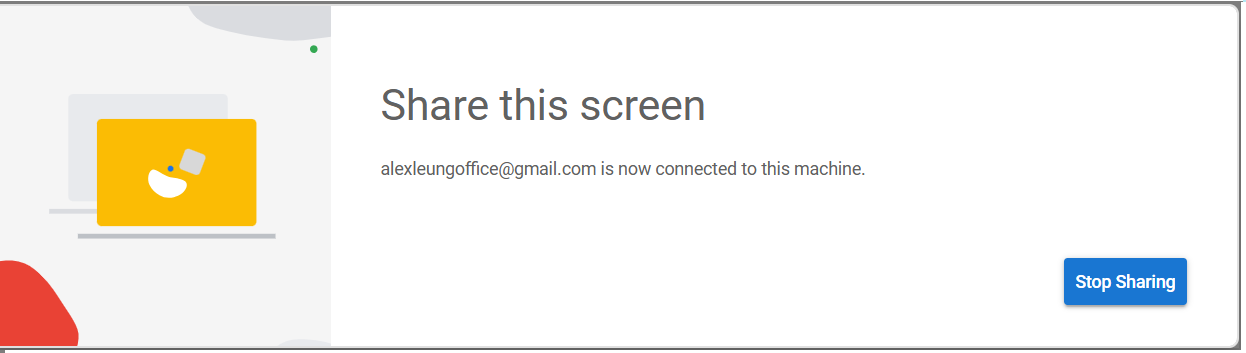
Safety and privacy
- Encrypted: All sessions are end-to-end encrypted by Google; no third party can see what’s transmitted.
- You’re in control: Click “Stop sharing” any time and the session ends. We cannot bypass this.
- Single-use: Each 12-digit code is one-time. Once the session ends the code is invalid; we can’t reconnect unless you generate a fresh code.
- Avoid sensitive screens: During the session we can see whatever’s on your screen. Please don’t open banking, password-manager, or other sensitive windows. If anything sensitive accidentally appears, just click “Stop sharing” and let us know.
- We never ask for passwords: Lin Fung Accounting will never ask you for passwords (email, banking, accounting software, Windows, etc.). If anyone claims to be us and asks for a password, refuse and let us know.
Stuck?
If any step fails, call or WhatsApp us — we usually reply within 5 minutes and walk you through the rest.
